
Prerequisites: Detailed Version History is available to Editors, Managers, and Administrators. Staff with view-only permissions can see available Draft, Published, and Archived versions but cannot view the detailed changes within each version.
This feature is not available in Classic Theme.
Table of Contents
- How to open version history
- View curriculum versions
- Review changes
- Understand what changed
- Who can view version history?
- Can I restore an earlier version?
How to open version history
You can access Version History within a course or unit.
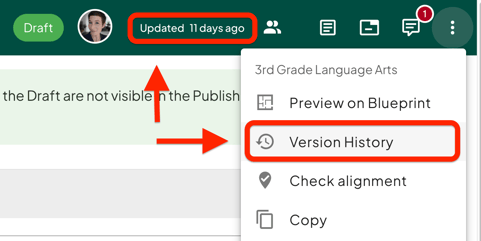
- Select Version History from the More Options (⋮) menu.
- Click the Updated [time] link in the toolbar icons in the upper-right corner.
- For courses, select All versions from the Draft or Published banner when available.
Version History will open in a panel where you can review available versions and changes.
View curriculum versions
The Versions section displays the available versions of the course along with information such as:
- Draft, Published or Archived status
- When the version was published or last updated
- Who published or updated it
- Which version you are currently viewing
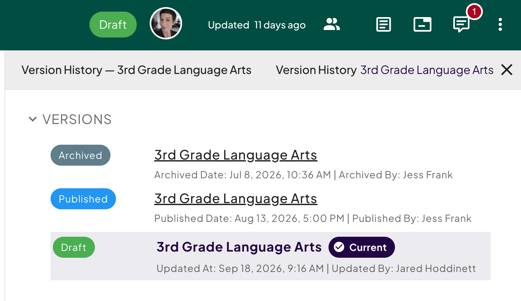
Select a version to open it. Published and Archived versions open in a read-only view, while the Draft version includes the option to open in an editable view.
Review changes
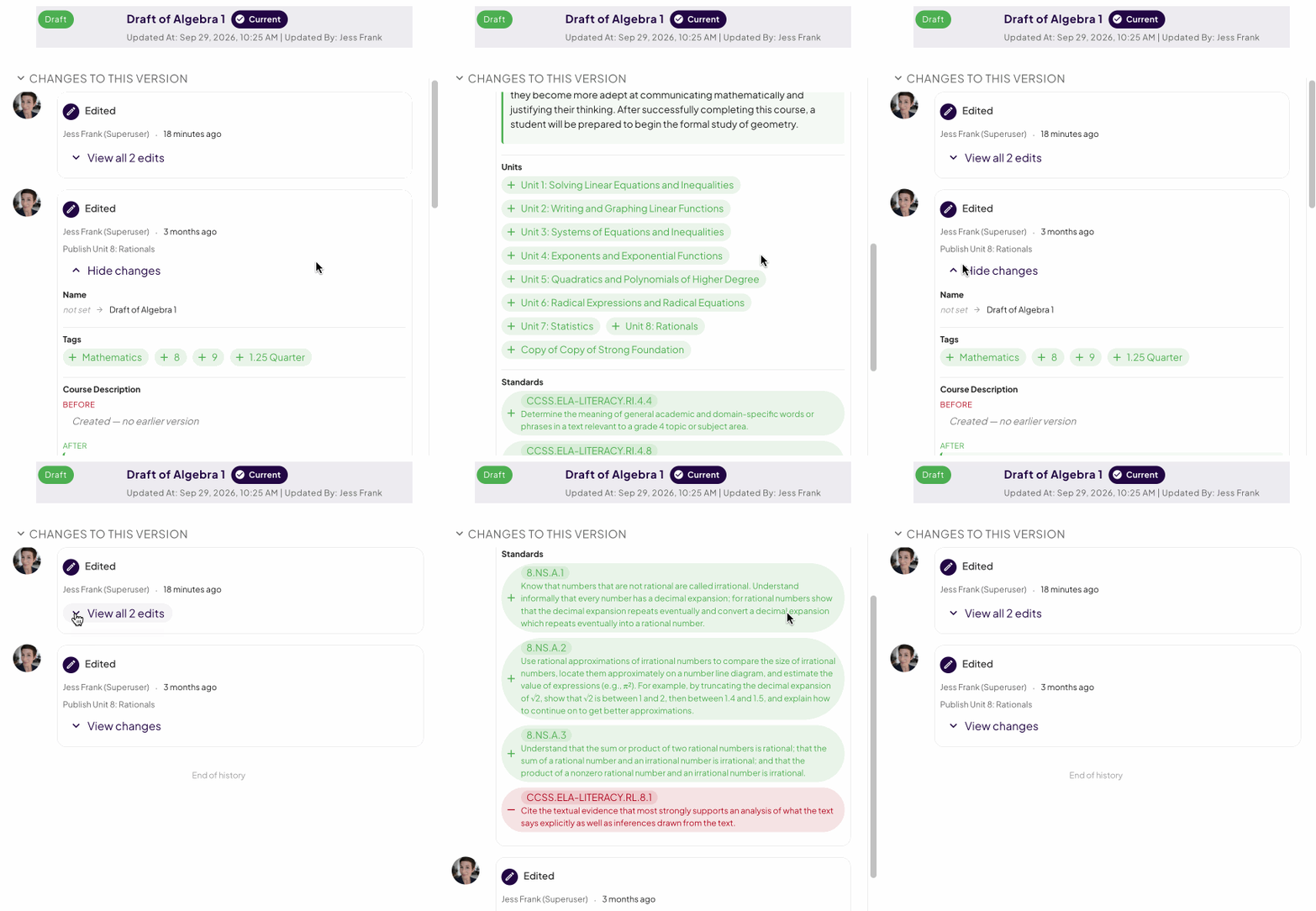
The Changes To This Version section provides a timeline of edits, with the most recent changes displayed first.
Each entry identifies:
- Who made the change
- When the change was made
- The field or content that was updated
- The number of edits included in the entry
Select View changes or View all edits to expand an entry and see additional details.
To keep the history easy to review, multiple edits made by the same person within a short period of time may be grouped into a single entry. You can expand the entry to review the individual changes.
Understand what changed
When change details are available, Version History provides a field-by-field comparison.
Depending on the type of content, you may see:
- Before and After: Text and field updates show the previous and updated values.
- Added or Removed: Changes to items such as standards, tags, resources, and assessments are clearly identified.
- New Content: If a field did not previously contain content, the history indicates that there was no earlier version.
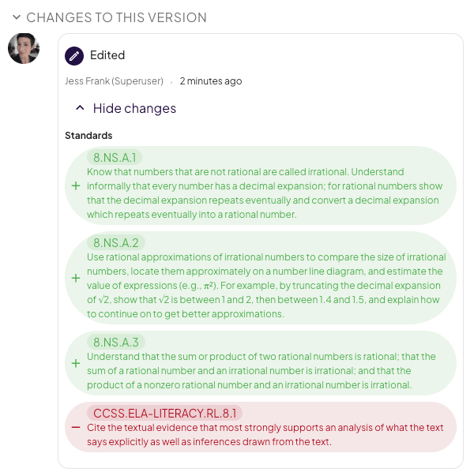
In the example below:
-
One standard was removed, indicated by the – (minus) sign and red background
-
Three standards were added, indicated by the + (plus) sign and green background
Who can view version history?
Version History is available to editors, managers and administrators within your organization.
Users with view-only access may be able to see the list of available versions but will not see the detailed breakdown of individual changes.
Can I restore an earlier version?
Version History is currently designed as a read-only record for review and reference.
At this time, you cannot restore or revert curriculum to an earlier version directly from Version History. The feature also does not currently provide a complete side-by-side, track-changes-style comparison for all text edits.